Category Archives: Technology

Raspberry Pi Endeavors 5 – Building The Car

Unfortunately both Mr.Basic 4wd chassis’ that I got had such high resistance in them, they could barely spin their own wheels, let alone drive along the floor. I got these sent back and went for a larger vehicle made from 2 pieces of acrylic and 4 motors connected directly to 4 wheels, that I picked up from ebay for about £20 [from China].

clear chassis photo

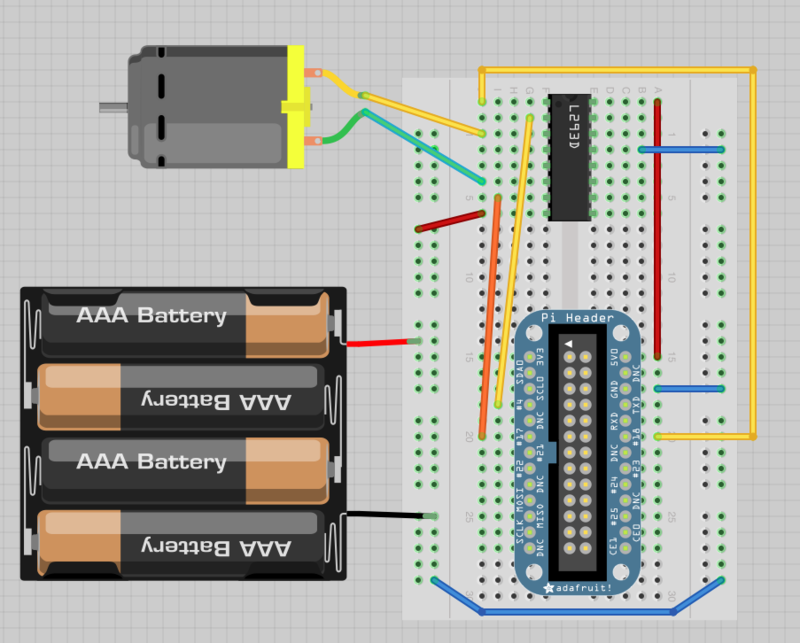
I then followed Adafruit’s guide: Lesson 9. Controlling a DC Motor. This is a great guide to power one motor – to power another, just connect another 2 input wires symmetrically on the other side, same with the outputs to the motor. You also must connect the PWM pin 18 to the EN2 [right hand side PWM pin on the chip] to allow the Pi to control the speed of both motors. If you wanted them to go different speeds, you would have to use software to emulate a PWM pin, and then connect that to the chip – as the Pi only has one PWM pin.

L293D Chip

Picture: Adafruit Learning System (Lesson 9 DC Motor)

I then used a Raspberry Pi Cobbler from Adafruit to gain easy access to all of the Pi’s GPIO pins on a breadboard. On the breadboard, I placed the cobbler, L293D motor chip, and connected them both up with jumper wires, adding the batteries for the motors to the positive and negative rails. [Follow Adafruit’s guide!]

Wiring diagram

Picture: Adafruit Learning System (Lesson 9 DC Motor)

So now the Pi is connected to the breadboard, on which is a motor chip that controls the motors using inputs from the GPIO pins. If your batteries are charged [like mine weren't first time - diagnosed by putting an LED on the motor wires, and it glowing very dimly], you are ready to start asking the motor chip to power the motors. Again, follow the Adafruit instructions that get you putting e.g pin 4 high, which signals the chip to drive the left motor in one direction. You must also set the PWM (value of 0-1024 I believe) that controls the speed of the motor. I use at least 500, but normally closer to 1000 – as the if it is to low, the motors ‘stall’ and wont turn.

All you need now is some software to control it. Me and my housemate use an index.html file hosted on the Pi that calls a bash script whenever a directional key is pressed, then when it is let go, it runs an off script that turns all control pins back to 0. You can also use Python. I used Python to make the script to control the flashing emergency LEDs [superbright blue LEDs].

More soon!

Matt

Generate Many MAC Addresses – Keyboard and Mouse Recorder for Mac

I needed to generate a lot of unique MAC addresses for my virtual machines, and VMware has no function that I can find in vmrun to generate one. However, in the ‘Network Adapter’ settings of any VM, you can pummel ‘Generate MAC Address’ to create new, unique ones. One option was to generate that address, copy and paste it into a text file, and repeat – but I didn’t fancy doing this for however many I’d need (probably hundreds) – so I Googled for a ‘Ghost Mouse’ piece of software – and came across Keyboard and Mouse recorder for Mac by softonic.


Great. It recorded my mouse and keyboard inputs of generating, copying, alt-tabbing, pasting, hit enter for a new line. I could also loop this process – but only to a maximum of 10 times without registering. I didn’t fancy pressing the play button whenever it finished (about every minute) so after looking for a command line way to start it (thought I could use a minutely CRON job..) I found no man pages or anything. Therefore I just fired up a new instance of  the application, and got that to click the play button on the first one, and then stop recording after about a minute. Putting this on a 10x loop as well, it will press the play button on the 10x generate loop, 10 times – so generates them in batches of 100. Win.

“Wherever possible, cheat”

Matt

Raspberry Pi – Networking Script Change

Made some modifications to my script – made a function for writing to the file, which saved a lot of reused code, and instead of assuming that it could ping Google if the result wasn’t ‘unknown host www.google.co.uk’ – changed it to detect the words ‘ bytes from’ – from ’64 bytes from x’.

Find the code at: http://www.matthewrobbins.co.uk/files/connectiontest.py

Next up – try and make a script that detects if mjpg streamer is actually broadcasting video – if not, restart the service (this can fix issues that arise if the webcam is plugged in after boot)

Matt

On the BBC News! – Raspberry Pi Cambridge Event

A few weeks ago, I shot up to Cambridge to help out with a Raspberry Pi event at Chesterton Community College where Raspberry Pi founder Eben Upton took great pleasure in announcing that they would be providing 15,000 Raspberry Pi kits to school children in the UK, through a grant from Google.

Me and a Pi

Chatting to a group of primary school children about what the Pi is.

I think this is a fantastic initiative, and the RPi is the perfect, standard, versatile and powerful bit of kit to get people learning real computer modules – from Java and Python programming, use of Unix operating systems and their services, to lower level component control with the GPIO pins and SPI and I2C interfaces. I really do hope that schools adopt the Pi, and get students introduced to programming and real computer science so that they can become interested in the subject area if they wish, and start pursuing cool projects.

Matt

Raspberry Pi Endeavors 4 – Hardware

A week or so ago, I decided to my own version of Google Glass by selotaping the Pi, webcam and Nick’s battery pack to my hat. Here is the result:

Glass Hat

I also received my Mr.Basic 4wd chassis, which I discovered was faulty, after I had built it.

The kit:

Basic Kit

Partially built:

Half built

Built with motors:

Built Mr Basic

It looks like a really promising design, so I have ordered another one from Bizoner in China, they seem quite hard to get hold of around here. Also ordered a slightly larger one for Nick. Pictures to be posted when they arrive!

We also grabbed a couple of RC cars from Argos, and I proceeded to take mine apart to discover what kind of voltage the motors were using etc:

RC Car being held by third hands, being measured by a multimeter

Matt

Raspberry Pi Endeavors 3 – Battery and Other Components

My networking script has only restarted my networking adapter once since I got my new Edimax adapter, the log shows (I save the print statements to a text file now) it tried to ping Google twice, couldn’t, restarted the networking service, then was fine.

Networking restart script showing 1 restart

I also have my webcam displaying a live stream to a website, along with Nick’s too:

The webcams output on a webpage

The webcams output on a webpage

I have also got my Pi running on a mobile 12000mAh phone portable charger, which seems to power it for about 8 hours on its first run. The charger has a 1 and 2 amp output which is useful, and it charged by its own micro USB cable – the same one that I connect to the Pi to power it.

Mobile phone battery charger

Mobile phone battery charger

Also got some superbright LEDs – blue and white – for when our 4wd chassis’ eventually come, as well as some smaller breadboards and some resistors.

Just got an email this morning that Bizoner.com has finally processed our order of 4wd chassis’ so hopefully they will come next week.

Matt

Remote Control Car Powered By Raspberry Pi Project – Raspberry Pi Endeavors

Update on the networking issues: I made a log of whenever my networking service had to be restarted, and it was very random – sometimes 12 times an hour, sometimes never in a night. In the end I got a new (not ancient) Edimax WiFi adapter, and this has been working great so far. I can also recommend this £10 Edimax one too. I also got a Logitech C910 webcam off eBay for £45 off eBay, which is much better than the ancient Microsoft one that I was using.

Pi with USB WiFi antenna, battery pack and webcam

Pi with USB WiFi antenna, battery pack and webcam

After buying some components off Maplin and Ebay, me and my housemate Nick have been able to light up LEDs and spin motors connected to a breadboard via first a header extension cable connected to some of the Pi’s GPIO pins, and then using the Adafruit Raspberry Pi Cobler – which transports all the pins functionality to a breadboard where you can start adding resistors, wires and LEDs easily.

We have been using ‘motion’ for Linux to export our webcam stream, however it wasn’t all that happy with higher resolution webcams, and froze very often for me, especially at night. Nick endured slightly better luck with a lower quality, older, Microsoft webcam, which froze less. We were prepared to settle with Motion, but then found that mjpg-streamer, that I had previously used at work to look at the current snowfall out of the window, provided a MUCH better quality, framerate, and hasn’t froze once yet.

I have made it start on boot by adding a new cron job that runs a shell scipt that contains the command to start mjpg streamer, and an ampersand to run it in the background:

Cron jon: @reboot /home/pi/Documents/code/mjpg-start.sh

mjpg-start.sh:

/home/pi/Documents/mjpg-streamer/mjpg-streamer/mjpg_streamer -i “/home/pi/Documents/mjpg-streamer/mjpg-streamer/input_uvc.so -n -f 25 -r 320×240″ -o “/home/pi/Documents/mjpg-streamer/mjpg-streamer/output_http.so -n -w “/home/pi/Documents/mjpg-streamer/mjpg-streamer/www” -p 8082″&

The mjpg-start command uses a definable resolution size, but be warned this is of set sizes, and an output port too – I have used 8082.

I followed this guide to get mjpg-streamer set up, be sure to run ‘make’ as sudo!

To get LEDs lighting up, I had a look at the Adafruit learning system, who have some brilliant guides from how to prepare and SD card with a Raspberry Pi image to how to make LEDs light up when you have a new Gmail message, to how to control a motor. Follow these great guides, grab a Raspberry Pi cobbler and breadboard and break out the old electronics and maths textbooks – be sure not to fry your Pi by putting too much power through it – be careful with the GPIO pins.

Happy Pi-ing!

Matt

Raspberry Pi Endeavors – Networking restart script

After popping to Maplin today to buy some electrical components to connect up to my Pi, I decided to write a script to reconnect my Pi to the internet if its WiFi connection fails, which it seems to do fairly regularly, and I haven’t nailed down completely whats causing the USB Belkin adapter to stop working.

Basically, my script pings Google, if it gets a response – great. If not, try once more, and if no luck, restart the networking service. If still no luck, pull down and put back up again the wlan0 (wireless lan) adapter.

Script is below if you wish to nick it. Also I modified my /etc/resolf.conf to match the one on Adafruit’s Pi learning site, whose tutorials I am following.

Matt

Code [click here to download the properly indented version]:

#!/usr/bin/python
import commands

def can_ping_google():
ping_once = “ping www.google.co.uk -c 1″
output = commands.getstatusoutput(ping_once)
if output[1] == ‘ping: unknown host www.google.co.uk’:
print “Ping failed”
return False
else:
return True

def connection_test():
if can_ping_google():
print “Pinged fine”
return
else:
if can_ping_google():
print “Pinged fine second time, first was a fail”
return
else:
print “Restarting networking service”
restart_output = commands.getstatusoutput(“sudo service networking restart”)
print restart_output
if can_ping_google():
print “Restarting worked, can ping now”
return
else:
print “Restarting didn’t work. Will force wlan0 down and up, and restart networking after”
print commands.getstatusoutput(“sudo ifdown –force wlan0″)
print commands.getstatusoutput(“sudo ifup wlan0″)
print commands.getstatusoutput(“sudo service networking restart”)
if can_ping_google():
print “Down, up and restart worked. Can ping.”
return
else:
print “Couldn’t ping Google after up, down and restarting.”

connection_test()

But How Good Is It? Headphones – Sennheiser HD280 and PC360, Creative Sound Blaster Arena Surround and Tactic 3D Sigma, JVC HA-S600 Review

2 Sennheisers, 2 Creative Sound Blasters and a set of JVCs. Which are best? Find out here…

Sennheisers
Recently I have tried Sennheiser HD280(~£90) and PC360(~£160) headsets, some very expensive devices, which I would never have bought mainly due to their extreme price. The 280s were fairly uncomfortable, however the 360s fit fairly well. With the HD280s, I felt the sound was distant, further away from my ears, and the cups sat on top of my ears and started to hurt slightly after a while. I found the 360s much more comfortable, and the audio seemed closer and more surrounding. The microphone on the 360s looks very good, folds up when not in use, and my friends say the quality is amazing. Both Sennheisers use 3.5mm headphone jacks, (the 360s use 2, headphone and microphone, the 280s lack a microphone and only use one) – which is nice if you want to use it with an MP3 player or phone – anything that isn’t a computer. I believe both sets also allow their earcups to fold up – making them slightly smaller.

Sennheiser HD280s
Pros:

  • Headphone jack

Cons:

  • I didn’t like the audio quality – seems fair away and quiet
  • No microphone
  • Hurt to wear for extended periods (although my helmet size is XL)
  • Not very noise cancelling

Overall: Didn’t like them that much. 3/10

Sennheiser PC360
Pros:

  • Microphone (A good one too, apparently)
  • Headphone jacks
  • Look really good
  • Better, closer, more defined audio than the 280s
  • Comfy – non squeezing – very wide
  • Fairly noise proof

Cons:

  • Very expensive

Overall: A headset I would use fairly happily, if they were my only ones. Good gaming headset. 7/10

Creatives
What’s the difference between the Arena Surround and Tactic Sigma? The Sigma headsets are newer than the old Arenas, but that doesn’t necessarily mean they are superior. Both support detachable microphones, which I think is a great feature, both have very comfortable, ear surrounding, soft cups, both have an adjustable volume option on the cable with microphone muter, and both have great audio quality – the best from any headset I’ve tried in my opinion. There are a few differences between the old and the new however, the white Arenas have a USB connection which is a shame as I would wear them everywhere otherwise, but they can make themselves slightly smaller – the cups rotate so they can be packed flat – with the cups facing away from you. The Sigmas don’t collapse at all – making them very bulky, but have the best of both connections – 2 3.5mm jacks that you can use with your phone, but also come with a THX headphone jacks to USB adapter – which I guess makes the audio even better, with the right software and drivers.

Creative Sound Blaster Arena Surround (white ones)
Pros:

  • The best, closest, sound quality in my opinion
  • Feel very durable, good cable too
  • Onboard volume controls and microphone mute
  • Comfy cups! Could, and do, wear the, for hours
  • Very noise resistant
  • Make you look like a pilot
  • Closer to £35 than the huge Sennheiser prices

Cons:

  • USB connection only, so I can’t use them more

Overall: I love them, favourite headset, but USB limits use. 9.5/10

Creative Sound Blaster Tactic 3D Sigma
Pros:

  • Very good audio quality
  • Looks like a very good microphone with foam around it
  • Both USB and headphone jacks!!!
  • Volume controls and microphone mute
  • Good noise resistance
  • Around the £50 mark at a quick look

Cons:

  • Bulky, don’t collapse, feel a bit more fragile and less rugged
  • Cable is flat, more like a rubber ribbon, doesn’t feel as durable

Overall: Great headset for your desk, not for travel. 7.5/10

JVC
And finally a pair of JVCs. Why? Because I bought these myself. For me to buy tech usually requires extensive research by searching online of reviews and trying to find the best price. I was with my flat mates in HMV trying out the funny looking Beats headphones (£150-£350+), found that the £350 pair were actually quite good. The smaller headsets that didn’t encompass your ears weren’t so great, and not worth their price tag. Trying on some other brands, I came across some £30 JVCs, which almost silenced the store when I put them on. They have no noise cancelling ability, but their cups comfortably fit right around your ears, preventing some noise and cold air from entering them. I wear them every day on my commute to work, and am wearing them now, sat on a train. Why? They are feel fairly sturdy, collapse to a much smaller size than any previously mentioned headset – great for travel and being stored in a bag. Audio quality is great, and feels close to my ears. I have blue ones, but saw someone with the white variety on the train just today, which look really good.

JVC HA-S600
Pros:

  • Headphone Jack
  • Very comfy to wear for extended periods
  • Fold up to a convenient travel size
  • Audio seems encompassing and close, like the creatives
  • About £15 from Tesco online when I bought them
  • Fairly noise cancelling

Cons:

  • No microphone, but you wouldn’t want one on a travel headset
  • Sound quality isn’t quite as fulfilling as the creatives

Overall: I love them, brilliant for travel, when I eventually wear them out, I will buy more. 10/10

Ubuntu Home Server – Install, Samba and LAMP

To help improve our general knowledge of Unix systems, me and my housemate Nick set out to set up a Linux file server. After realising that Ubuntu Server didn’t seem to come with much of a GUI, and with us not knowing how to coax the ancient PCI Wireless adapter into life, let alone the commands to get it to join a network, we decided to install normal Ubuntu instead.

After installing the OS, we installed and configured Samba – all which turned out to be very trivial to complete. We quickly had it serving files with a static IP, so we could map network drives to it or directly access it’s shared folder.

We then had the idea of serving webpages too, so after installing LAMP (Linux, Apache, MySQL and PHP), we forwarded port 80 (HTTP) to its address in the router settings, as well as SSH port 22. This means that we can put our outward-facing, router IP address into a web browser and get redirected straight to the LAMP server on the linux machine. We can also now SSH into the external IP just as we would with the internal one.

Matt