A while back I made a webshop for games as part of a CS250 Web Programming assignment, a project which I really enjoyed doing. The results are in, and I scored 94%! Not bad for a project I had a great deal of fun creating and perfecting. The games shop was made in XHTML+CSS using JavaScript for some client-side validation, and PHP for many features such as includes and sessions. The games were pulled from an SQL database, and I implemented many buttons and options so the user would be able to narrow down the results to a certain platform, price range, or games that contain words. Each of these required a new SQL statement which turned out to be quite intuitive and logical to do.
I have always wanted to be able to use my Xbox 360 controller with my PC, as I am much more accustomed to it than a mouse and keyboard for First Person Shooter (FPS) and driving games. There are two ways to go about hooking up an Xbox controller to the PC, buy a wired Xbox controller (should work on both Xbox and PC) or buy a “wireless gaming receiver”. You cannot use a “play and charge kit” wire (controller – USB) to use your controller with the PC, as it seems to only transmit power and not data.
I went for the wirless gaming receiver, an unofficial one. Official ones were about £20, I got mine for £10 including postage.
What’s in the box?
Included in the box was:
The wireless receiver with a very long cable, 6 foot apparently.
Mini disc with drivers, instructions, software etc on it.
Installation
On many review that I read before buying, I saw a lot of people had problems with the drivers, especially with Windows 64 bit, which I have.
Sure enough, I plugged in the device – “Device not recognised” by Windows.
I popped the disk in and found the instructions, and drivers for 32 bit Windows.
After a quick Google, I found that the drivers seem to be built in already (and this unofficial device seems to use the same as the official one?), and found the following instructions on this website.
Let me pick from a list of device drivers on my computer
Microsoft Common Controller for Window Class
Xbox 360 Wireless Receiver for Windows Version: 2.1.0.1349 [8/13/2009]
Update Driver Warning
Click Yes
My device manager listed 2 unknown devices, so I repeated this process, clicking whatever was the newer dated driver.
First Use
Now the right drivers were installed, the controllers connected easily (and quicker than to the Xbox 360). I connected 2, and it seemed all happy. There is a standard connect button on the device to press to open it up to new devices (controllers/headsets etc). Had a few teething issues, selecting it in a game seemed very easy (tried it in Off Road: Drive, Race Driver: Grid and Trucks & Trailers so far), and I configured the buttons to do what I wanted. One problem I had was that Off Road Drive kept pausing, but after restarting the game it seems fine now. With Trucks & Trailers (lorry driving), I noticed that when the steering wheel had been moved, it would move back to its normal (straight) position, but sometimes would be slightly off centre. This seemed to be the controller steering slightly in one direction once being used to steer, and I countered this by turning up the steering deadzone slightly.
After the odd tweak to the settings here and there, I had great fun in using my controllers with the different driving games, providing as I hoped, much more control over the vehicles. One thing you must remember is that the Xbox controller has much less buttons than a keyboard does! This is fine for GRID etc, but for Off Road Drive, with all of its different options in game for locking differentials, delfating tyres, engaging winches etc.. I had to double up some buttons (e.g hold RB and press A to turn the winch on, just A itself is handbrake).
On the disk comes some software which comes with an old HTML troubleshooting guide, and can display battery status etc, as shown in the image below.
Would I buy it again?
Yes, definitely. Would I go for the official version… possibly. This one hasn’t really let me down yet, and I believe it must be almost as good as the official ones.
Matt
I am a big fan of simulators like Flight Simulator X, and I am also really like SCS Software’s Euro Truck Simulator. I have just found out that Euro Truck Simulator 2 is in the works, still with a lot to do to it, but there are some videos on YouTube of them recording sounds from real Scania lorries that they borrowed from Scania, for sound in the game. Also another video on moving the mirrors from the interior – it looks like it is going to be a good game! Cant wait for it to be released in March 2012.
If you are interested, theres a playlist of “Euro Truck Simulator 2 Development” - this video of improved vehicle AI should put you into the playlist. The trucks look so much more modifiable within the game now, you can change your tyres, cab, chassis, mirrors, exhausts, number plates, lights where you want them on the bottom chrome bar, you can even turn the lights on and off in the editors to see how it looks! Beacon lights for the top of the cab are there, and apparently work too. Many different engines.. it look pretty amazing.
Bit of History
When I first got a desktop, I had a CRT (fat) monitor. Since then I have had an unbranded 15″ish silver plasma display, and a 17″ LG LCD TV. CRTs are now a thing of the past, the old monitor I had was fine, but had some terrible speakers built in either side. The LG Flatron M1721A is an okay TV. Built before HD was so common, I managed to get it cheap – £75 I believe, as there was a new Maplins opening in Kidderminster. It has speakers that are okay and ports on the back include ariel, VGA, scart and the 3 coloured component ports that old Xbox’s and PlayStations plug into (red white and yellow). I noticed after a while, a year or two, the reds that the tv displays, it displays them, then also copies them and displays them a short distance faintly from the original. Not sure why, and not too noticeable for most things, but sometimes you do see a red blur. It is currently in use connected to my Toshiba laptop, as I am home for Christmas – and it is doubling as a second screen.
Samsung SyncMaster 2033HD
On Amazon, I was looking for monitors and came across the Samsung 2033HD – a 20 inch widescreen monitor/tv with freeview built in and a whole host of ports on the back. It looked so good, my parents bought one too for their bedroom. They were priced at a very reasonable (must have been reduced) price of £120. This monitor/tv did not disappoint – it could do everything I wanted and more – I could connect my HDMI Xbox 360, my old Xbox with it’s component connection, my scart freeview box, my VGA pc etc etc.. it was so good, I wanted two.
But How Good Is It?
Very, with 720p HD (not quite 1080p), built in freeview – you just need an external antenna, dozens of ports and a pretty sleek design – I liked it. So what about the specs? Well it is a 20 inch LCD widescreen, with 16.7 million colours – which has to be enough for any domestic situation.. Speakers are in there, and to be fair are pretty good – I have played guitar hero on it, and not had a problem at all. It does sound better coming through my £15 logitech speakers, but only if you compare them consciously. 5ms response time seems to be as low as most other TVs out there, a TV remote is included, as is a stand, and the TV is wall-mountable if you buy a bracket.
Ports – in my opinion the most impressive part of this TV..
2 x HDMI (1 on the side, under a little flap)
DVI-D
SCART
VGA
Component video input – RCA x 3
Audio line in – RCA x 2 (red and white from the yellow, red, white)
Audio line in – mini phone stereo (normal headphone jack it seems)
SPDIF – TOSLINK – fibre optic audio – never used this, probably never will
Another headphone jack on the side – very useful for connecting to speakers intermittently
Antenna in
Common interface – on the side – never used – something to do with DTV receivers.
USB port for servicing/firmware I believe. Don’t think you can use flash drives with it.. I’ll have to try..
Well that’s the list, the main ones are the 2 HDMIs for PC graphics cards / new laptops, VGA and DVI for PCs etc and the headphone jack on the side is useful too.
Old pc CHKDSKing on the left, new pc installing Realplayer on the right
What’s in the box?
Included is:
Samsung 2033HD TV
Remote control
Stand (bottom bit)
VGA cable
Instructions
Overall
Overall a fantastic all-rounder TV, and good for the budget concious, they do occasionally seem to drop in price, keep your eyes on eBay. I loved mine so much, I bought another – exactly the same (although one seems to be a millimetre shorter or so). It makes the computing experience so much nicer having identical dual screens. I got the other one second hand off eBay, only quibble it has one dead pixel in the middle which is a little annoying (stuck on red), tried all I could to shift it, but nothing worked. I use a HDMI – HDMI and HDMI (TV end) to DVI-I cable to get from the TVs to my ATI HD6850 graphics card (outputs: HDMI, DVI, DVI, Display Port).
I am very happy with the pair of them, they look pretty cool, they have a blue glow in middle-bottom under the TV when it is on (pulsing if standby). They are made from black very glossy plastic, which gets dusty quick but does look good. One thing to bear in mind if buying twin monitors that are the same – they will BOTH respond to one remote control if it is pointed generally in their direction. I have had a few times where I go to turn the one off, and the other starts as well. I turn the awakened one off, and the other one comes on in reply.. can be prevented by putting the remote right next to their little sensor (bottom right dot on the plastic). No major hassle really. They also do have a fair few controls onboard the TV – along the right hand side (the little flat for the HDMI, headphone jack and CI is on the left), including power, vol up and down, source, programme up and down too I think. The main ones you use are source and power (bottom) though.
Quick Pros and Cons
Pros: Lots of ports, TV in built with freeview, HDMI, great quality, wide screen, big enough to have a document snapped left and right to each half (windows key and left / right arrow keys for Windows 7).
Cons: 1 dead pixel on one of mine, its a fairly unlikely event though, they take a couple of seconds(3-4) to fire up, which is a bit more than a normal pc monitor. I don’t think they are that adjustable – they tilt forwards and backwards I think, which is more than good enough for me – but I know e.g some dells can go up, down, forward, backward and even rotate..
If you want to see a video including this monitor starting up, click here.
When buying new things, especially technology, I take time – and lots of it. Why? Because I really like making informed decisions, and I want to know exactly what I am getting, what it will or will not do, will it work as I expected, and will it still do so a few months down the line?
Not much to ask normally, but it can be hard to find the a good bit of tech with the huge range of manufacturers and models out there. How many 20″ monitors are there? Thousands? Bound to be some rubbish ones and some “easter eggs” (amazing finds) in that mix.
So I write a few reviews of the things I have purchased – in the hope that it will allow someone to make a slightly more informed decision – as I try and put myself in the “user”s shoes – which is especially easy when I am a user. I will find out what annoys me about the product, could something be made better, and if there is something great about it. So comes the review set of blog posts about some of the tech I own, if its worth buying, crucially – would I buy it again?
First I am going to talk about a Samsung Display I have. But how good is it?
Just had a good go on Flight Simulator and tried to get some good temperature results when things are under a bit of load. Have a look at the table below for the temperature when playing FSX, the rough idle temperatures (min) and the maximum temperatures I achieved at some point.
The last (planned) part in this mini-series regarding the build – more may appear with further reviews or problems that I encounter if needed.
With everything assembled and working – I had a functioning computer! Windows 7 was installed, drivers were updated, some programs were on and all of the hardware seemed to be going fine, however I found myself opening up the convenient front door of the case, as well as smacking side panels off again.. but why?
8 Pin power extension
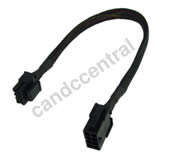
Before, my CPU 8 pin power cable went straight from the PSU, over the graphics card, and back down to the board – fairly untidy. I invested in a £4.68 8 pin EPS12V 30cm black extension cable. [I noticed you can get these in different colours from this seller, and different sizes elsewhere on eBay. Just make sure you don’t get a PCI-E one, also 8 pin]. I routed this around the back of the case by the rear exhaust fan, and over the top of the case to the port on the board. Looks much better.
I also purchased a SATA 3 locking 6gbps cable (45cm) for £2.24. This was due to needing a flat SATA3 connector for my SSD – as I was mounting it on the convenient mounting points on rubber feet located at the bottom of my Antec DF35 case. The 90 degree cables were unusable, as they tried to go out of the SSD and downwards – where the case was. Fitted this cable fine, the SSD didn’t mind it, and CrystalDiskMark showed the same read and write benchmark tests (I wanted to ensure it was a 6gbps cable!).
I also ordered a PS/2 to USB connector to try with my old keyboard – just to see if it would work. That still hasn’t come yet though.
SSD Performance
This PC boots extremely quickly compared to my old computers – although it does stay around the BIOS level a long time.
The above YouTube video is of my computer booting. When I press the power button, about a second later it turns on and activates the extension lead (the PC is the “master”) and this turns on all the “slave” ports which include the monitors, speakers etc. I timed 40.1 seconds from pushing the button to the desktop. I started Chrome and opened a website (my webmail) just to show that the internet was up and ready to go straight away. Off to Facebook in 40 seconds? Pretty good.
Macromedia Fireworks loads very quickly too – somewhere just under 1.8 seconds. The pc changes from Aero to Windows basic mode (fireworks, flight sim x etc need basic mode) almost instantaneously. Notepad++ starts in about half a second, Google Chrome starts as though it was minimized, and even Internet Explorer doesn’t freeze when it starts (not that I use it. Ever. Apart from when Hotmail forced me to use it :/ ).
Farming Simulator 2011
A game I particularly enjoy, old computer handled it very well. This one handles it perfectly with even better graphics. Rarely if ever lags, the only jolts are caused by me doing things like driving forage harvesters into solid guard rails..
Flight Simulator X
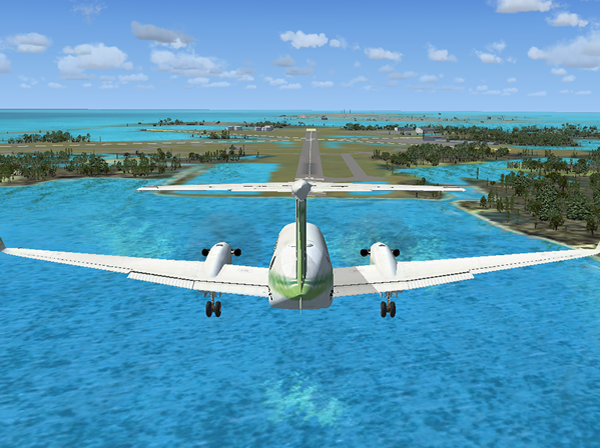
I’d like to talk to you about Flight Simulator X – the latest Flight Sim at the time of writing (21/11/2011) – and my old computer with a beefy ATI HD6850 card would be able to handle it perfectly, I thought. I was half right – it ran it fine, but the settings were medium or low/medium to be on the safe side, to try and prevent lag and slow frame rates. I installed it to this computer (I chose to install it to the SSD – which has only 54 precious gb left free) – and fired it up to have a play. I plugged my Saitek joystick in, and luckily Windows 7 found the drivers and installed them quickly – I was notified by it’s success by my aeroplane suddenly throttling up as it began to rumble along the runway. After cleaning the dust out of my scarcely-used joystick, I took off the parking break and went for a fly. It was smooth – very smooth, and the scenery looked very good too. Once up in the air (I took off from the smaller Key West airport – Florida), I decided to check out the “Display” settings to see how high I could get them to go without it becoming laggy. To my amazement, the game had detected what hardware it was allowed to use, and had ramped every setting up to “Ultra High”. After a small flight, I turned on my second screen, and got another view (View – new view) of outside my aircraft and put that full screen on the second screen. So now the game was running 2 x 20″ inch HD screens of different Flight Sim windows, and it handled it perfectly! I touched down at the (International?) larger airport after seeing many building and even tankers docked by land. I am sure there is much more to explore with the new graphics, and I certainly will at some point. I ran Hardware Monitor and the temperatures were slightly raised, but still nowhere near hot. When I play again, I will get some figures for you.
Conclusion
Well I think that’s all for now, so I will pop a small conclusion here for anyone who doesn’t want to (and I don’t blame you) read the entire blog – as I am sure there are many thousands of words. I have tried to include as many pretty pictures as I can – not an amazingly easy feat with WordPress – but not bad. Adding that YouTube video was fine – when you upload, you get a link and a button to “Embed” (into a webpage). It will give you some small HTML code – just pop this into the HTML version of your blog (hit the HTML tag on the top right when writing a post).
So what did I do? – and some quick comments and ratings
I built a computer based around the Intel i7(10/10), with:
Asus P8Z68-V motherboard – pretty perfect – 9/10
CoolerMaster Hyper Evo cooler – quiet, slow, big – 10/10
8gb of Corsair Vengeance RAM – looks good – 10/10 for my purposes
Logitech X-140 desktop speakers – Good speakers, good adjustable bass, input and output on right one – 8.5/10
I am sure to write blog posts about some of these at some point – as I do take a very long time to choose what I buy, and am rarely disappointed with my purchases.
Going back to what I built – the PC runs Windows 7 Ultimate 64 bit – very good, the only real choice for computer enthusiasts (especially if you have over 4gb of RAM – you need 64 bit rather than 32 bit).
Why did you build?
My old PC was getting a bit slow and out of date with its dual core. I went for an i7 due to it’s immense power, and hopefully it will not need upgrading in the near future. I opted for a 120gb SSD as I have filled 65gb already, I wanted to put some programs on it – not just the OS. I will still have to install some programs to my spinning disks, though. My documents also live on the spinning drives too. 8 gb of RAM should be more than enough for my needs, and coupled with the awesome CPU and the great ATI HD6850, they make mince meat of any games. Going to try out Portal 2 soon.
Would you do it again?
The most important question, in my opinion – to someone having done it, would you do it again, and why?
Yes. I would build this again, were this one to spontaneously combust (it shouldn’t, don’t worry). Would I opt for the same components? Yes, probably – I’d maybe consider the Corsair Force 3 SSD a bit more, but would still go for the OCZ in the end. Also make sure you have a legit copy of Windows 7, they just feel safer. I’d love a bigger SSD – but they are so expensive, a 120gb will more than suffice.
Well just a note to say thanks very much for reading, please leave any comments and I will try and get back to them as soon as I can. Alternatively email me or click here.
In the last post, I added in the graphics card and 2 hard drives from my old build. Windows 7 had been installed, as has Office 2010, Macromedia Fireworks, FileZilla, Realplayer, Notepad++ and also some diagnostic things like CPUID’s HWMonitor.
Major Problems Encountered
So far I had encountered a few major problems:
Whenever the computer booted, it would report “CPU FAN ERROR” – press F1 to continue. I first changed the option in the BIOS to tell it to carry on in the event of an error. I email scan and told them I had tried the CPU fan in all the headers, and it was still the same. After a few days, they replied asking me if I had put it in the CPU_FAN header, which it was already in. After a few attempts at contacting them again, they replied saying they thought it was the motherboard, and did I want them to send me another. Replacing the board would have meant starting right from the start again – rethermaling the CPU, fitting the cooler back on top of it, the RAM, updating the BIOS, probably re-installing Windows and all of the drivers.. at least I could have followed this blog if I got stuck. In the end I consulted with a friend who advised me to have a look at the BIOS settings again regarding the fan. I went in and changed the CPU LOW FAN SPEED from 600RPM to 200RPM. I believe this value means the value at which an error will be thrown if the CPU fan goes too slow, rather than setting the lowest fan speed – as you may imagine. The CPU fan seems to spin around 590 – 700RPM. With the new low value set – the error was gone, as the fan was spinning quicker than it’s warning value. (My fan spins slower than most CPU fans as it is a 120mm fan rather than an 82 or 90mm). The fan is quiet, the CPU is still cool, so it is good enough for me – and I am not going to try a new board.
All the issues with updaing the SSD firmware, see this blog post if you want to know how to hopefully avoid these issues, and my recommendations.
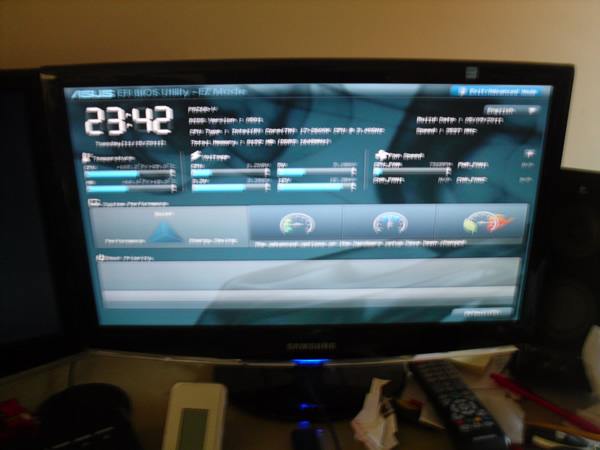
Blue screen on boot – when changing that SATA leads around, the BIOS decided that it would rather try and boot off the old Samsung drive with it’s old Windows 7 on it. The Asus EFI BIOS (simple version) only showed a little picture of my Samsung drive – so I had to go to the advanced options – boot and give them proper boot priorities as you would in a normal BIOS. Not really a problem – but worth watching out for.
Trying to update my Samsung drives with an OCZ firmware and breaking the Windows installation. I’d recommend completely disconnecting all non essential hard drives when playing around with updating firmware and Linux commands.
With most of the inside components connected and ready, I booted the PC to make sure it would get into the BIOS. I Plugged in my new Logitech K200 USB keyboard (~£13 from Argos). The PC booted to BIOS after a bit of turning on and off (getting itself ready I suppose), but did, and still does report CPU FAN ERROR. I actually installed Windows 7 at this point, using the disk I used for my previous PC (Windows 7 Ultimate, 64 bit). I went for Ultimate rather than Professional in the end, as Ultimate does have a few more useful features. I then began the long processes of installing the drivers for all the board utilities, LAN, onboard graphics, USB 3.0, Intel Rapid Storage etc. Still have to do Bluetooth at some point. I also updated the BIOS, took the new BIOS on a flash drive – went to the BIOS and used the easy update utility. Very easy and quick to do, but still didn’t fix the CPU FAN ERROR.
Shortly after this, I got the XFX ATI HD6850 from my old build, and inserted it into the top PCIe slot, then connected the power as well. I added the 2 x 1 terrabyte drives into the drive bays, and moved the “hot swap” drive connectors up to their level, as they were too close to the bottom, and I wanted the SSD to eventually be mounted on the bottom. The hot swap device enables 2 (3.5 inch or 2.5 inch with a bracket) drives to be plugged into one side, then the power and data connections to the other. The 2 drives live infront of one of the front fans – which keeps it nice and cool (HWMonitor reports about 22-24 degrees, which is more realistic than the constant 128 degrees it reports for the SSD).
Brother Computers, Old PC has it's CRTs on so I could see the HDDs
Just before this point, I had been still trying to fix my old pc – as I had somehow made it unbootable. When I had eventually fixed it with a 4 hour CHKDSK /r, I made some final preparations to leave that OS – I took some screenshots of my desktop and start menu items, some information about the custom search engines I use [click here for my blog post about quickly searching in chrome], and some notes on programs to install again. I was bringing all the data with me to the new build, but I just wanted to retrieve and save any data that was easily obtainable, especially regarding the OS and settings. After this, the pc was turned off and the drives removed. It was very easy to insert the drives into the new case – just open the front fan doors, and slide them in. Then proceed to connect all the leads on the other end.
Old pc doing a CHKDSK on the left, new pc installing Realplayer on the right
Once the drives were in, as was the graphics card – I took a moment to get the graphics card drivers from the ATI website, (have to get the CCC – catalyst control centre), which also enables you to manually turn the fan down – as its a bit loud on automatic, despite being cold. I have included a picture of Hardware Monitor’s findings – which aren’t all accurate – my room temperature is about 20 degrees, and some readings are colder than that. The CCC software also reports the graphics card runs at around the low 40′s. I did a “heavyload” test – which maxxed out all threads on all cores to 100%, and the temperature of the cpu rose from high twenties to around 40, but not much higher. I will try and do some proper testing at some point.